Wiki
Controls
Every control described here can be personalized. This wiki will only cover the default controls.
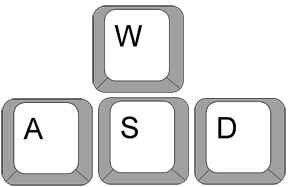
You can move your player using the WASD keys:
 →
→ 
Currently, there are two types of attacks in the game:
- The direct attack
- The chargeable attack
Direct attack
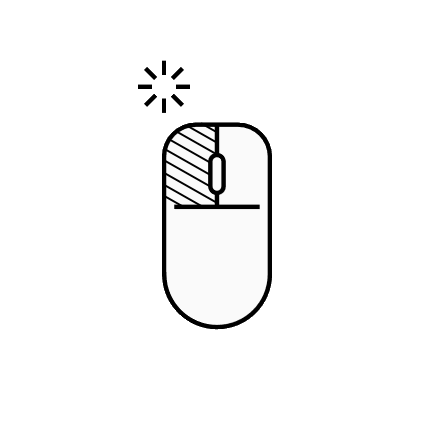
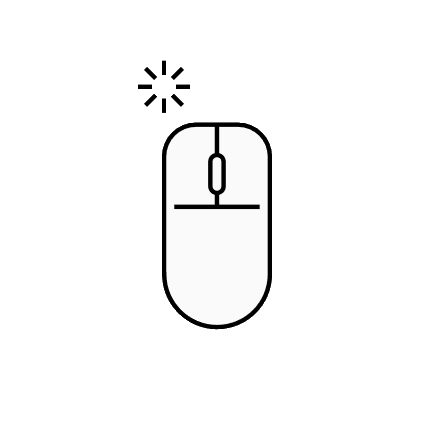
A direct attack is an attack which is triggered by a single left mouse click such as a melee weapon strike:
 →
→ 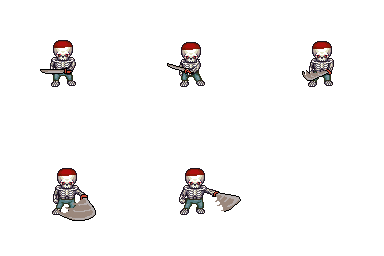
Once active, a direct attack cannot be stopped (unless the attacker dies).
Chargeable attack
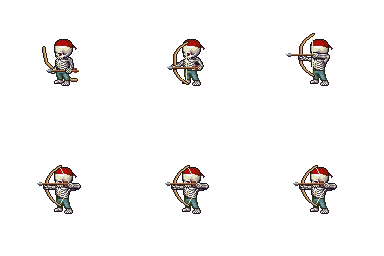
A chargeable attack has two stages. Hold the left mouse button to charge it; the indicator in the top-left corner of the screen fills as it charges.
→ 


Once the indicator is full the cursor turns red. Release the button to launch the attack.
→ 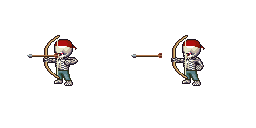


Releasing early cancels the attack, as does a right click before it fires.
Ranged weapon and offensive spells fall into this attack category.
Skill shots
In this game there are only skill shots. Every attack can be dodged so be mobile and anticipate your enemies' actions.
Have fun!
Gameplay
Action bar
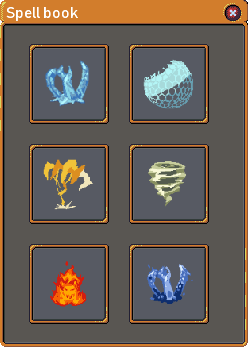
Your action bar can be filled with consumable items or spells. The first slot is reserved for your currently equipped weapon. Only one slot can be selected at a time and the selected slot will react to your mouse input.

To switch your selected slot you can click on it, use the mouse wheel or use the keyboard shortcut (key 1 to 6).
Spells can be found in the spellbook (the O key) and items in the inventory (the I key):
HUD
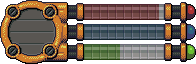
Your HUD shows you some information about your player stats. The red represents your player life, the blue your mana and the green your experience.
Respawn point
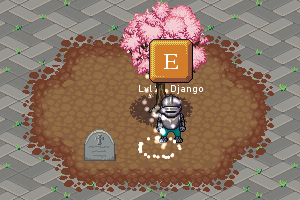
When you die, you respawn at your saved respawn point. Respawn points are represented by a hollow of white floating particles. You can update your saved respawn point by interacting with it by pressing the E key.
Loot
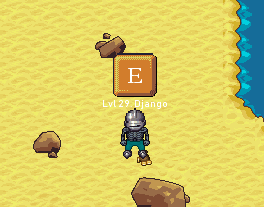
When you kill an enemy there is a small chance that it drops a loot on the ground which is represented by this sprite: 
Move your player towards the loot entity and press the E key to start looting:
 →
→ 
You can also drop items from your inventory to the ground by drag and dropping them and they will become a loot available for anyone interested in it.
A loot will disappear after 90 seconds without any player interaction.
NPC
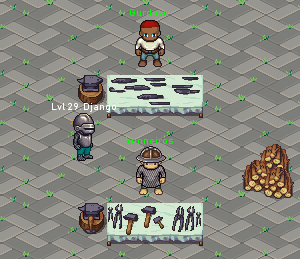
NPCs are non-player entities you can interact with to buy items. Their name is displayed in green.
Equipment
Certain items such as helmets, swords, etc. can be equipped. As of today there is no restriction on the equipment, therefore you can equip any item you may find in the Oshigo world. To equip an item, simply drag and drop it into the corresponding slot or use the mouse right click:
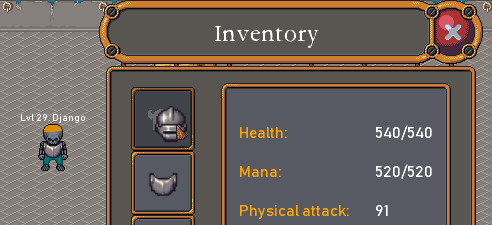
An equipment can have two types of statistics modifiers:
- Modifiers of addition (add the given amount to your raw stat)
- Modifiers of multiplication (multiply your stat by the given percentage)
The modifier of multiplication is applied after the modifier of addition. Furthermore, before it is applied all the multiplication modifiers are added together. For example, if my helmet and my sword give me respectively 2 and 3% of physical attack, the final value to apply will be 5%.
All the equipped items are visible on your character.
PvP
You can decide to participate in player versus player fights simply by toggling this icon:


You can only fight with the players who have enabled their PvP flag. Once you engage a PvP fight, your name turns red and you cannot disable your PvP flag until you stop fighting for a certain period of time.
Day night cycle
There is a day night cycle. Each cycle lasts 10 minutes. The system is not optimal yet but it will be improved in future versions.
You can press the N key to toggle your character light.